
Intermittent GPU crashes frustrate gamers and professionals alike. Your screen freezes mid-game, or artifacts appear out of nowhere. These random graphics card failures disrupt workflows and fun. However, you can pinpoint the cause systematically. According to a 2023 NVIDIA developer survey, over 40% of reported GPU issues stem from driver conflicts or overheating. Moreover, a Puget Systems study found that 25% of intermittent failures link to power supply instability. This guide walks you through proven steps to identify and resolve sporadic GPU problems effectively.
Understanding Intermittent GPU Crashes
Graphics processing units handle intense visual tasks. Yet, they fail unpredictably sometimes. Intermittent crashes differ from constant ones. They occur randomly, making diagnosis tricky.
First, recognize symptoms. Screens black out briefly. Games crash to desktop without warning. Strange lines or colors flicker on display. These signs point to GPU instability.
Moreover, causes vary widely. Overheating tops the list. Dust buildup or poor airflow raises temperatures. Then, driver issues arise from outdated or corrupt files. Power supply problems deliver inconsistent voltage. Hardware faults, like failing VRAM, trigger sporadic errors too.
Additionally, software conflicts play a role. Background apps overload the card. Overclocking pushes limits beyond stability. Even faulty cables connect improperly.
Transitioning to diagnosis, gather information first. Note when crashes happen. Track games, apps, or idle times. This pattern reveals clues early.
Common Symptoms of GPU Instability
Spotting signs early saves time. Intermittent graphics card crashes show subtle hints. However, they escalate if ignored.
- Screen Freezes: Display locks up for seconds, then recovers.
- Artifacts: Pixels glitch with colorful dots or lines.
- BSOD or Crashes: System reboots with error messages.
- Performance Drops: FPS plummets suddenly in demanding tasks.
Furthermore, audio stutters alongside visuals. Fans spin loudly before failure. These indicators guide your troubleshooting path.
For instance, a gamer reported freezes only in high-resolution modes. This hinted at VRAM overload. Another user saw artifacts during web browsing. That suggested idle-state issues.
Initial Checks Before Diving Deep
Start simple. Basic inspections rule out easy fixes. Therefore, avoid complex tools initially.
Clean your PC first. Dust clogs fans and heatsinks. Use compressed air gently. Remove side panels for access.
Next, check connections. Reseat the GPU firmly in its slot. Ensure power cables plug in securely. Loose links cause random disconnects.
Then, monitor temperatures. Idle should stay below 50°C. Under load, aim for under 85°C. High heat triggers thermal throttling and crashes.
Moreover, update BIOS if available. Manufacturers release fixes for compatibility. This step prevents power delivery glitches.
Tools You Need for Diagnosis
Gather essential software. Free tools empower accurate testing. Thus, download them from official sites.
- GPU-Z: Displays real-time specs and sensors.
- HWMonitor: Tracks voltages, temps, and clocks.
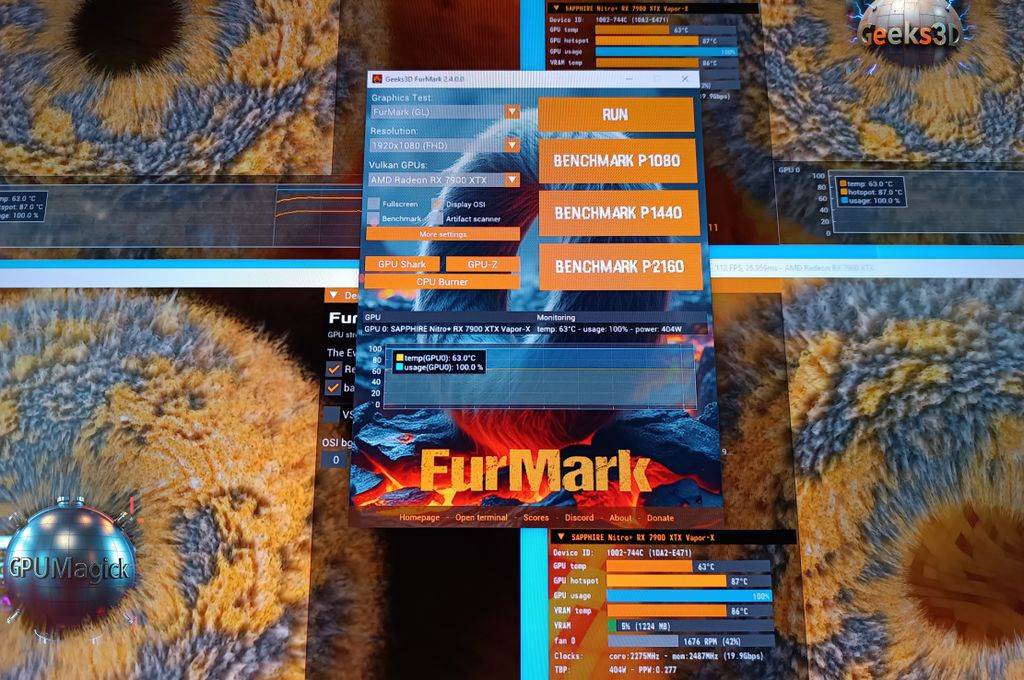
- FurMark: Stress tests for stability.
- MemTestG86: Checks VRAM for errors.
Additionally, Event Viewer in Windows logs errors. Search for “Display driver stopped responding.” These entries timestamp failures.
For advanced users, try MSI Afterburner. It overlays stats during use. Oscillations in clocks signal instability.
Step-by-Step Monitoring and Logging
Begin with baseline tests. Run your system normally. However, log everything meticulously.
- Install monitoring tools.
- Launch GPU-Z and HWMonitor.
- Note idle temperatures and voltages.
- Play a game or run benchmarks for 30 minutes.
Furthermore, recreate crash scenarios. Use the same settings each time. Consistency builds reliable data.
If crashes occur, check logs immediately. Event Viewer shows kernel errors. Correlate with temperature spikes.
Transition to stress testing next. Push the GPU hard. This exposes hidden weaknesses.
Stress Testing Your Graphics Card
Stress tests simulate heavy loads. They reveal intermittent faults quickly. Therefore, proceed cautiously to avoid damage.
Start with FurMark. Select preset for your resolution. Run for 15 minutes initially. Watch for artifacts or crashes.
Then, use Unigine Heaven. Loop the benchmark. Enable extreme tessellation. Monitor frame rates for drops.
Moreover, combine with Prime95 for CPU stress. This tests power supply under full system load. Instability here points to PSU issues.
For example, a user ran FurMark cleanly but crashed in games. That indicated application-specific problems.
Checking Drivers and Software Conflicts
Drivers control GPU behavior. Outdated versions cause random failures. Thus, update them properly.
Visit manufacturer sites. Download latest stable drivers. Avoid beta unless necessary. Use DDU for clean installs.
- Boot into safe mode.
- Run Display Driver Uninstaller.
- Remove old drivers completely.
- Install fresh ones and reboot.
Additionally, disable overlays. Steam, Discord, or GeForce Experience interfere sometimes. Test without them.
Furthermore, scan for malware. Viruses hog resources. Use Windows Defender for quick checks.
Inspecting Hardware Components
Hardware faults hide well. Intermittent issues often stem from physical problems. Therefore, inspect visually first.
Open the case. Look for capacitor swelling on GPU. Check for burn marks. Bent pins in slots cause poor contact.
Next, test in another PC. Swap GPUs if possible. Consistent crashes confirm card failure.
Then, verify PSU capacity. Use online calculators. Undersized units fluctuate voltage under load.
Moreover, replace cables. HDMI or DisplayPort faults mimic GPU errors. Try different ports too.
Analyzing Power Supply Stability
Power delivers consistent energy. Fluctuations trigger sporadic crashes. Thus, test thoroughly.
Use a multimeter on PSU rails. Check 12V line for ripples. Values should stay within 5% tolerance.
Alternatively, borrow a known good PSU. Swap and test. Improvements indicate original weakness.
For instance, a 500W unit failed with high-end cards. Upgrading stabilized everything.
Transition to overclocking checks. Factory settings ensure reliability.
Undervolting and Underclocking for Stability
Push limits carefully. Overclocks destabilize intermittently. Therefore, reset to stock.
Use MSI Afterburner. Slide core clock down by 100MHz. Test stability. Repeat until crashes stop.
Additionally, undervolt the GPU. Lower voltage slightly. This reduces heat and power draw. Tools like curve editor help fine-tune.
Many users fix random freezes this way. Lower temps prevent throttling.
Advanced Diagnostic Techniques
Dive deeper when basics fail. Specialized tools uncover root causes. However, require technical knowledge.
Run OCCT GPU test. It detects errors in minutes. Error scans check memory integrity.
Then, use GPU MemTest. Loop for hours. Bad VRAM shows errors quickly.
Furthermore, enable Windows debugging. Generate dump files on crashes. Analyze with WinDbg for clues.
Case studies show VRAM faults in older cards. Replacing fixed persistent issues.
When to Seek Professional Help
DIY reaches limits. Persistent problems need experts. Thus, consider repair options.
Local tech shops diagnose hardware. They use oscilloscopes for precise measurements.
Alternatively, RMA the card. Manufacturers test thoroughly. Provide logs for faster processing.
Moreover, forums like Reddit’s r/techsupport offer community advice. Share symptoms detailed.
Preventing Future GPU Crashes
Prevention beats cures. Maintain your system regularly. Therefore, adopt habits now.
Clean dust monthly. Use quality thermal paste. Reapply every two years.
Update drivers quarterly. Monitor for new releases. Enable automatic checks.
Additionally, use UPS for power protection. Surges damage components.
Balanced setups last longer. Match PSU to needs. Avoid cheap units.
Real-World Examples and Fixes
Stories illustrate solutions. A streamer faced freezes in OBS. Cleaning fans and undervolting resolved it.
Another builder saw artifacts in 4K. Swapping PSU eliminated issues. Voltage was the culprit.
Furthermore, a developer traced crashes to RAM. GPU shared system memory poorly.
These cases emphasize systematic approaches. Patterns emerge with logging.
Related:
Conclusion
Diagnosing intermittent GPU crashes demands patience. Start with symptoms and basics. Progress to tools and tests. Address drivers, hardware, and power. Prevent issues through maintenance. Follow these steps for stable performance.
Act now. Monitor your GPU today. Run a quick stress test. Fix problems before they worsen.
FAQs
What causes sudden GPU freezes?
Overheating, bad drivers, or power issues trigger them. Monitor temps and update software first.
How do I test for graphics card failure?
Use FurMark or Heaven benchmarks. Watch for artifacts or crashes under load.
Can dust cause random crashes?
Yes, it blocks airflow. Clean fans and heatsinks regularly to prevent heat buildup.
Why does my screen show artifacts intermittently?
Faulty VRAM or overheating often blames. Stress test memory specifically.
Is undervolting safe for GPUs?
Yes, when done gradually. It lowers heat and stabilizes without performance loss.
